
To fix neck strain with an ultrawide monitor, position it directly in front of you so the top is at or just below eye level. Adjust the height and tilt to keep your neck relaxed and avoid tilting up or down. Keep cables organized to prevent shifting, and make sure your chair offers proper support. Taking regular breaks and practicing good posture habits will boost comfort. Keep exploring tips that can help you stay comfortable all day.

Get the little things that make your day delivered free with Prime
- Fast, free delivery on millions of items
- Prime Video, Amazon Music and more included
- Member-only deals all year
Key Takeaways
- Position the ultrawide monitor directly in front with the top at or just below eye level to prevent neck tilting.
- Adjust the monitor’s height and tilt to maintain a natural, relaxed neck posture during use.
- Use ergonomic accessories like monitor stands or adjustable arms to achieve proper positioning.
- Keep the monitor at an optimal distance to avoid leaning forward or straining the neck.
- Take regular breaks and follow the 20-20-20 rule to reduce neck and eye fatigue during extended use.
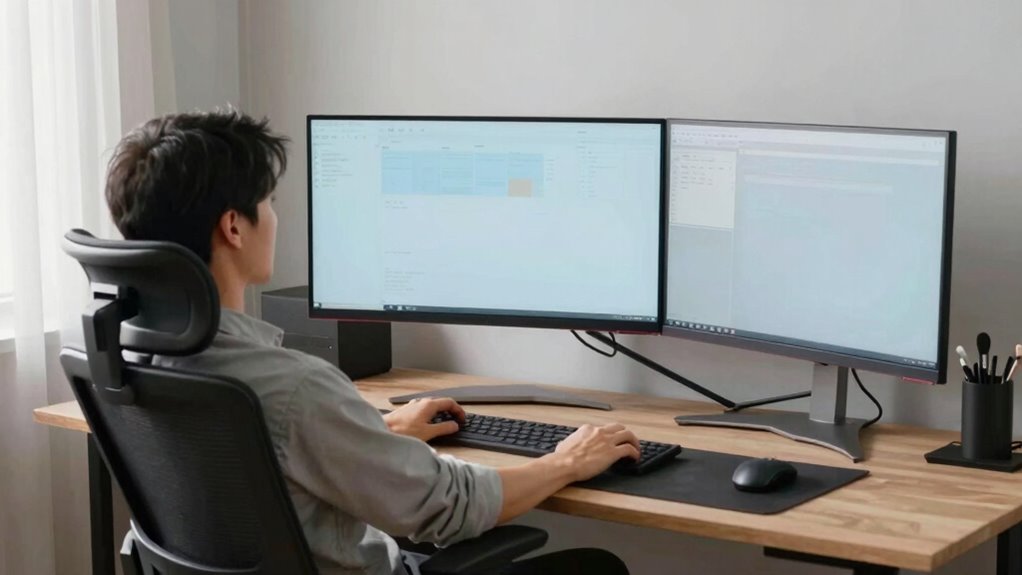
Have you ever wondered how to set up your ultrawide monitor for maximum comfort and productivity? The right setup can markedly reduce neck strain and improve your overall work experience. First, focus on positioning. Your monitor should be directly in front of you, with the top of the screen at or just below eye level. This way, you avoid tilting your head up or down, which can cause discomfort over time. Adjust the monitor’s height and tilt to guarantee a natural, relaxed neck posture. Remember, an ergonomic setup isn’t just about placement—it’s also about how you manage your workspace. Proper monitor calibration can also make a significant difference in reducing eye fatigue. Color calibration plays an essential role in reducing eye fatigue, especially if you spend long hours staring at your screen. Properly calibrated colors lessen eye strain and make viewing more comfortable. Use your monitor’s calibration tools or software to fine-tune brightness, contrast, and color balance. When your display is optimized, your eyes won’t have to work as hard to distinguish details, which minimizes fatigue and supports better posture since you won’t need to lean forward or squint. Additionally, understanding the importance of ergonomic principles can help you create a healthier and more sustainable workspace. Cable management is another key aspect that often gets overlooked but can markedly improve your ergonomic setup. Tangled or cluttered cables can cause your monitor to shift or sit unevenly, leading to poor positioning and neck strain. Use cable clips, sleeves, or management trays to keep cords organized and out of your way. When your workspace is tidy, you’re more likely to maintain proper posture because you won’t be adjusting or reaching around cables constantly. Plus, a clean setup enhances focus and reduces distractions, allowing you to work more comfortably for longer periods. Incorporating workspace organization into your setup can greatly enhance overall comfort and efficiency. Additionally, ensuring your desk height and ergonomic accessories are properly adjusted can prevent unnecessary strain and promote a healthier sitting posture. A well-organized workspace also minimizes unnecessary movements that can contribute to discomfort over extended periods. Consider your seating. Your chair should support your lower back and allow your feet to rest flat on the floor. Adjust the chair height so your knees are at a 90-degree angle and your hips are slightly above your knees. This alignment encourages better posture overall, preventing the tendency to slouch or crane your neck toward the monitor. If needed, add a small footrest or lumbar support to customize your seating arrangement further. Proper seating posture is essential for long-term comfort and can help prevent chronic pain or fatigue. Finally, take regular breaks. Even with the best ergonomic setup, your neck and eyes need time to rest. Follow the 20-20-20 rule: every 20 minutes, look at something 20 feet away for at least 20 seconds. This simple habit reduces strain, keeps your neck relaxed, and helps you maintain a comfortable, productive workflow. Proper setup combined with mindful habits ensures your ultrawide monitor becomes a tool for comfort rather than a source of pain.
ergonomic monitor stand for ultrawide monitor
As an affiliate, we earn on qualifying purchases.
As an affiliate, we earn on qualifying purchases.
Frequently Asked Questions
How Do I Properly Position My Ultrawide Monitor for Optimal Comfort?
To position your ultrawide monitor for ideal comfort, set the monitor height so the top of the screen is at your eye level, reducing neck strain. Keep the viewing distance about an arm’s length away, ensuring you don’t have to lean forward or strain your eyes. Adjust the monitor’s tilt and position to maintain a natural, relaxed neck posture, helping prevent discomfort during long sessions.
What Accessories Can Reduce Neck Strain With an Ultrawide Monitor?
You can reduce neck strain by using adjustable monitor arms and anti-glare screen filters, which help position your ultrawide monitor at eye level and minimize screen glare. Proper monitor calibration ensures colors and brightness are comfortable for prolonged viewing. Although some worry about extra accessories, these tools greatly improve ergonomics, making your workspace more comfortable and preventing neck pain over time.
How Often Should I Take Breaks When Using an Ultrawide Monitor?
You should take a break every 60 minutes when using an ultrawide monitor. During these breaks, stretch your neck and shoulders and use ergonomic accessories like a wrist support and ergonomic keyboard to reduce strain. Keep your monitor at eye level to minimize neck discomfort, and avoid staying in one position too long. Regular breaks help prevent fatigue, ensuring you stay comfortable and productive throughout your work session.
Can Adjustable Monitor Arms Improve Ergonomics for Ultrawide Screens?
Adjustable monitor arms can considerably improve ergonomics for ultrawide screens by offering better positioning, which reduces neck strain. They also promote vibration reduction, ensuring your monitor stays steady during use. Plus, they blend well with your setup, offering aesthetic integration that keeps your workspace looking clean and professional. With the right arm, you can easily adjust your monitor to the perfect height and angle, making long sessions more comfortable.
What Are Signs of Long-Term Neck Strain From Ultrawide Monitor Use?
They say, “A stitch in time saves nine,” and recognizing long-term neck strain signs is essential. If you notice persistent muscle tension, headaches, or restricted movement, it’s a warning. You might also experience poor posture correction and discomfort after long screen sessions. These signs indicate that your neck muscles are under stress from extended ultrawide monitor use, so addressing posture and taking breaks helps prevent lasting damage.
Conclusion
To truly enjoy your ultrawide monitor, it’s worth gently fine-tuning your setup. Small adjustments in your chair height, monitor angle, and taking regular breaks can make a noticeable difference. By giving your neck a little extra care, you might find your comfort naturally improves without much effort. Remember, a slightly more attentive approach can subtly enhance your experience, helping you stay productive and comfortable—sometimes, the tiniest tweaks can lead to the most pleasant surprises.
Halloween Picks
halloween
As an affiliate, we earn on qualifying purchases.